How I finally backed up my iPhone photo library to Google Photos
From 8,145 not backed up to zero
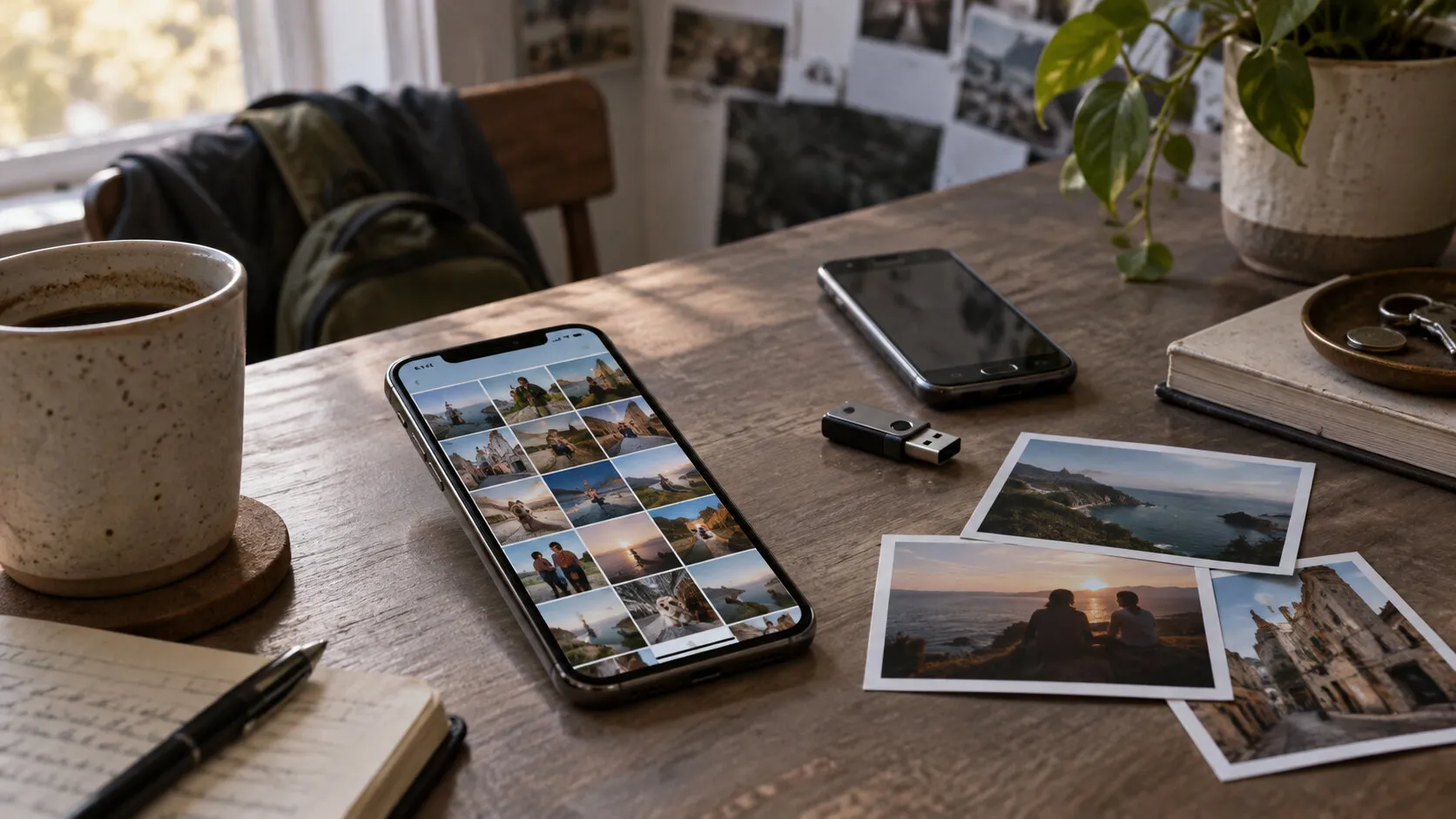
I used to back up my iPhone photos by copying them to a USB drive, moving them to an Android phone with ReVanced, and uploading from there. It worked, but every batch meant doing the whole transfer again. I kept putting it off.
I looked at gotohp and gunshot, too. Neither worked for me. Then I found PhotosBackup. It could upload from the iPhone through a Pixel XL route without using my Google account’s storage quota. I let it back up my photos and opened Google Photos on the web. They were there.
On the iPhone, Google Photos said 8,145 items were not backed up. Its Free up space screen offered almost nothing.
I wanted the space back, but I wasn’t going to delete thousands of photos from Apple Photos just because I could see them in a browser. I wanted Google’s app to recognize them and offer to remove the phone copies itself.
Watching the count fall
I tried a few photos I could find easily on both my phone and the website. A screenshot counted as backed up almost at once. Many camera photos didn’t. Some Live Photos were online, yet the iPhone still showed them as not backed up. I had to close and reopen Google Photos now and then to get its count to refresh, which did not help my confidence.
I updated PhotosBackup and ran Re-check Backups across the library. It now picked up the version of an edited photo that I saw on the iPhone. Before, the original file could be online while Google Photos was looking for the edited one. I had far more photos in that state than I expected, including Portrait shots and photos affected by the camera’s own adjustments.
I let the app go through thousands of items. I could leave it and come back without immediately stopping the backup; it kept working for a few minutes in the background and showed its progress. At one point Google slowed the uploads down. The app waited and continued. I still checked on it, but I didn’t have to sit there with the screen open the whole time.
The “not backed up” number eventually reached 43. I thought I could deal with 43. Then I checked Free up space again.
Only two photos to free up
There were about 8,500 photos and videos in the library I was working through. Google Photos now counted nearly all of them as backed up, but offered to free up just 2.
Many were Live Photos. Their still images had uploaded, but the short moving clips were missing. I turned on Back Up Live Photo Motion in PhotosBackup and checked one photo before leaving it to work through the rest. The motion played on the web, the iPhone showed the Live button, and Google’s Free up space screen offered that photo. Finally, the three places agreed about the same item.
The motion uploads took a while. I let them finish and checked again: 2 had become 461. That was useful, though it still left most of the library on my phone.
I used Free up space for what it found, then went through the rest with Google’s Delete from device control in smaller groups. I read the warning each time. Selecting several photos could make that button available even when one of them was not backed up. I checked what remained in Apple Photos and what had moved to Recently Deleted as I went. I wanted to be able to catch a mistake before it was permanent.
The last few photos
The remaining items were a mixed bag. I used Choose Photos or Videos in PhotosBackup to recheck specific ones instead of running another sweep of the whole library. An edited video needed another upload. So did a photo I had edited inside Google Photos.
A few had originally been saved from Google Photos back onto the iPhone. Uploading those same files again did not make the app count them. I made a tiny edit in Apple Photos, backed up the new version, and checked the count. I only had to do that for the handful left at the end.
The number went from 43 to 28, then 17, 5, 3, and finally 0. I used Google Photos to remove the remaining device copies. They went to Apple’s Recently Deleted, and the iPhone library I had been working through was empty.
What I wanted all along was to stop shuttling photos through a USB drive and another phone. The backup itself was much easier this time. Getting Google Photos to agree that the iPhone copies were safe to remove took longer, but seeing that final 0 not backed up was worth checking every stubborn photo.